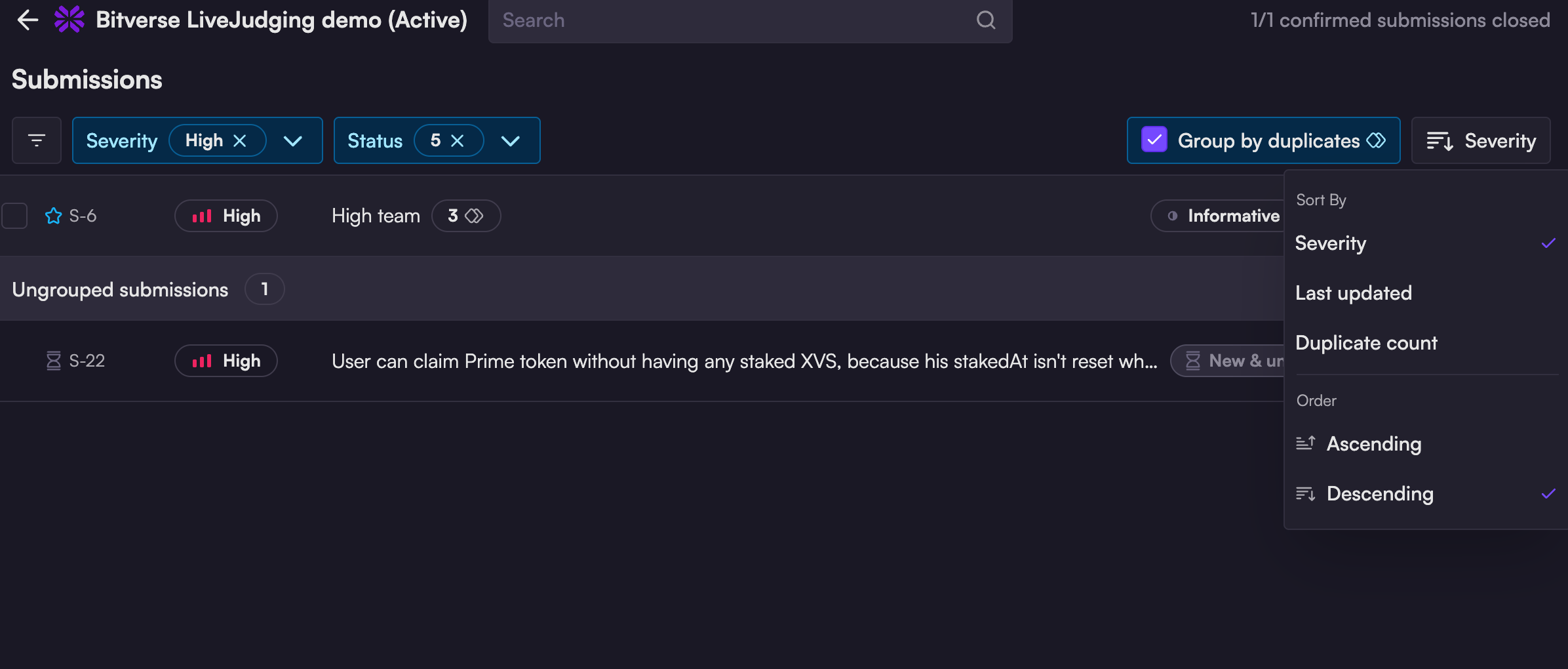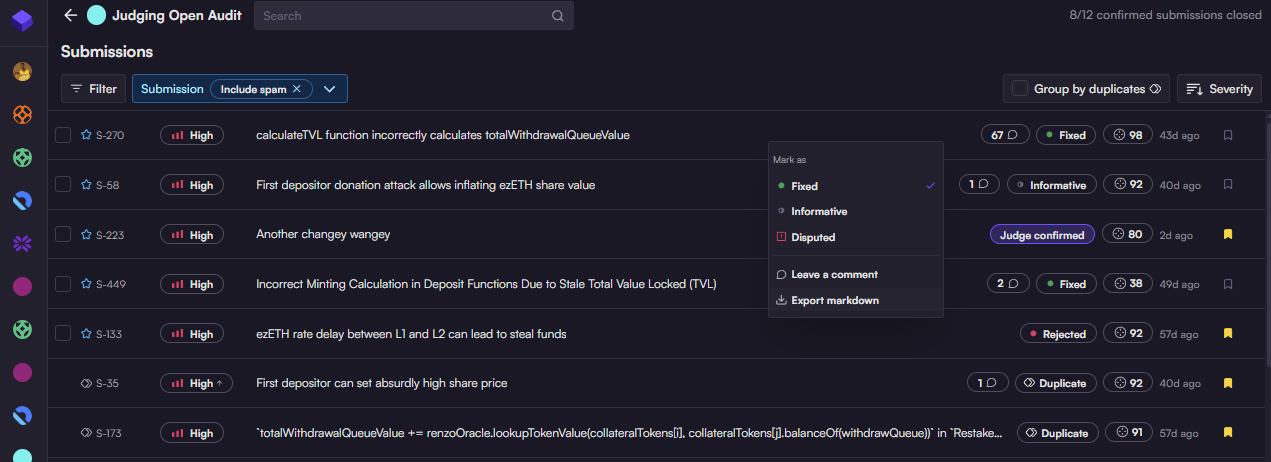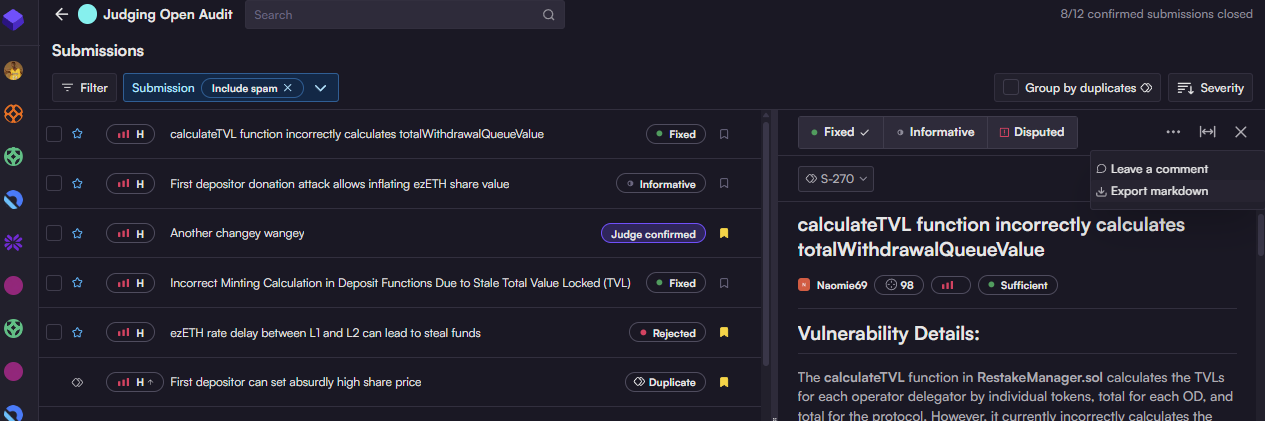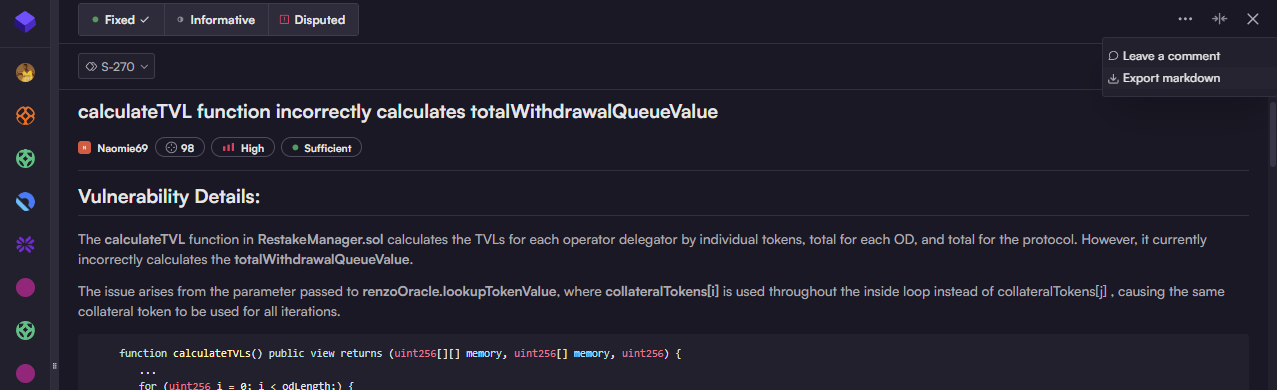
To view all submissions to your audit, click View all from your audit dashboard; this will take you to the full submission list.
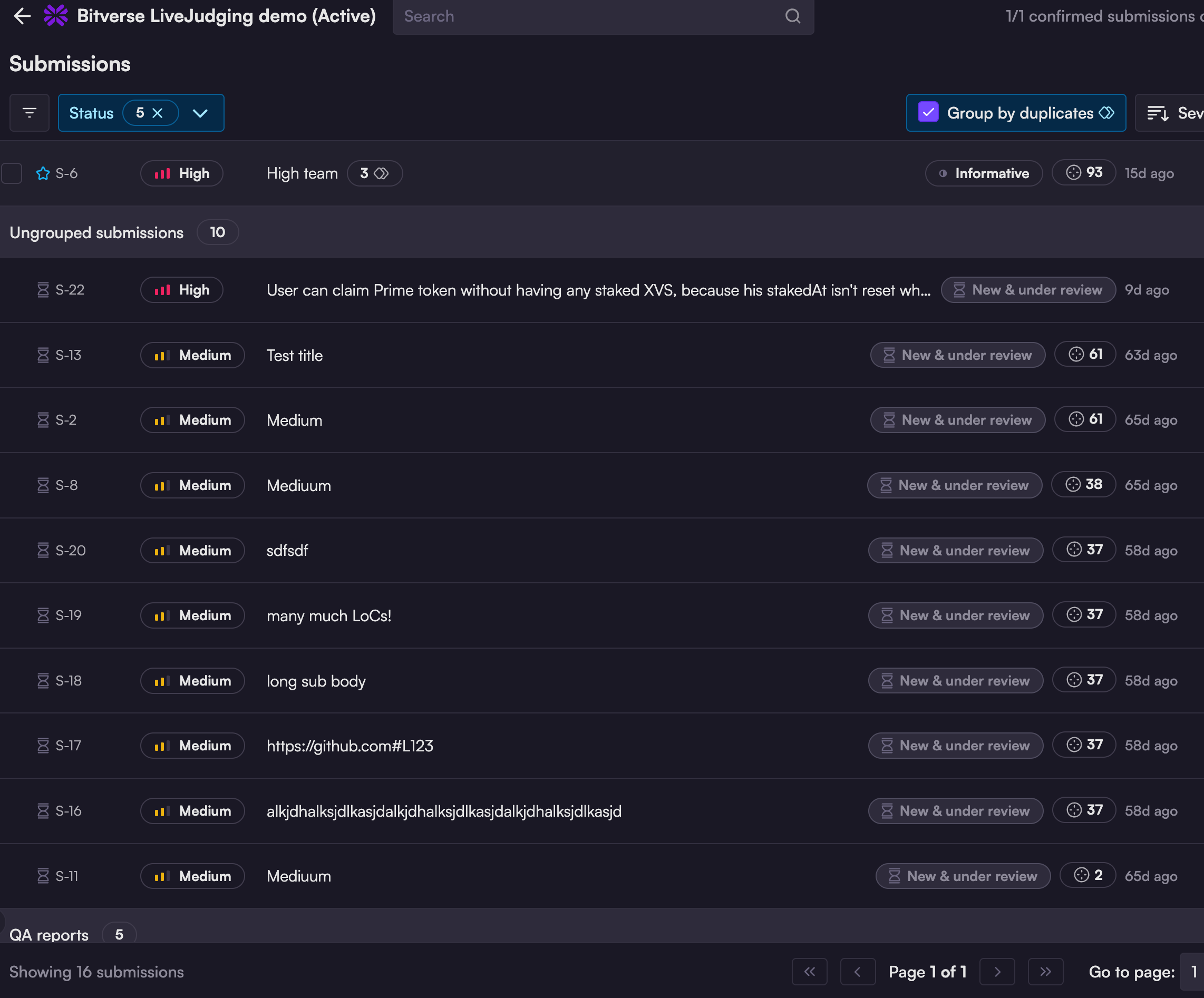
During the submission phase, and until the judge finishes triaging all submissions, the default view has three sections:
Triaged submissions (judge confirmed) at the top
Ungrouped submissions (new and under review) next
QA reports (compilations of Low-risk findings) last
Triaged submissions show first, then new submissions (not yet triaged).
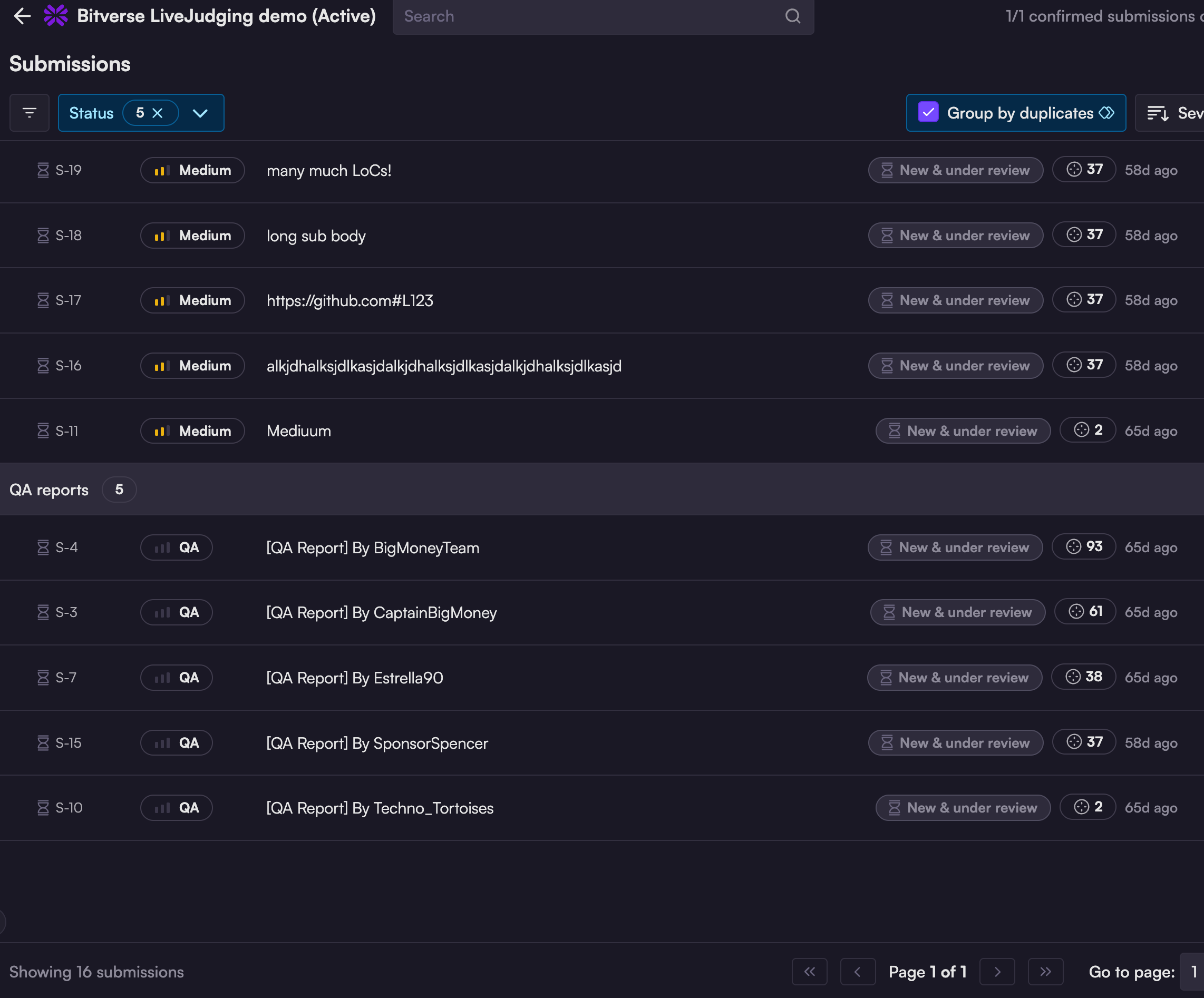
QA reports are listed at the bottom of the submission list; submissions default to displaying in order of severity.
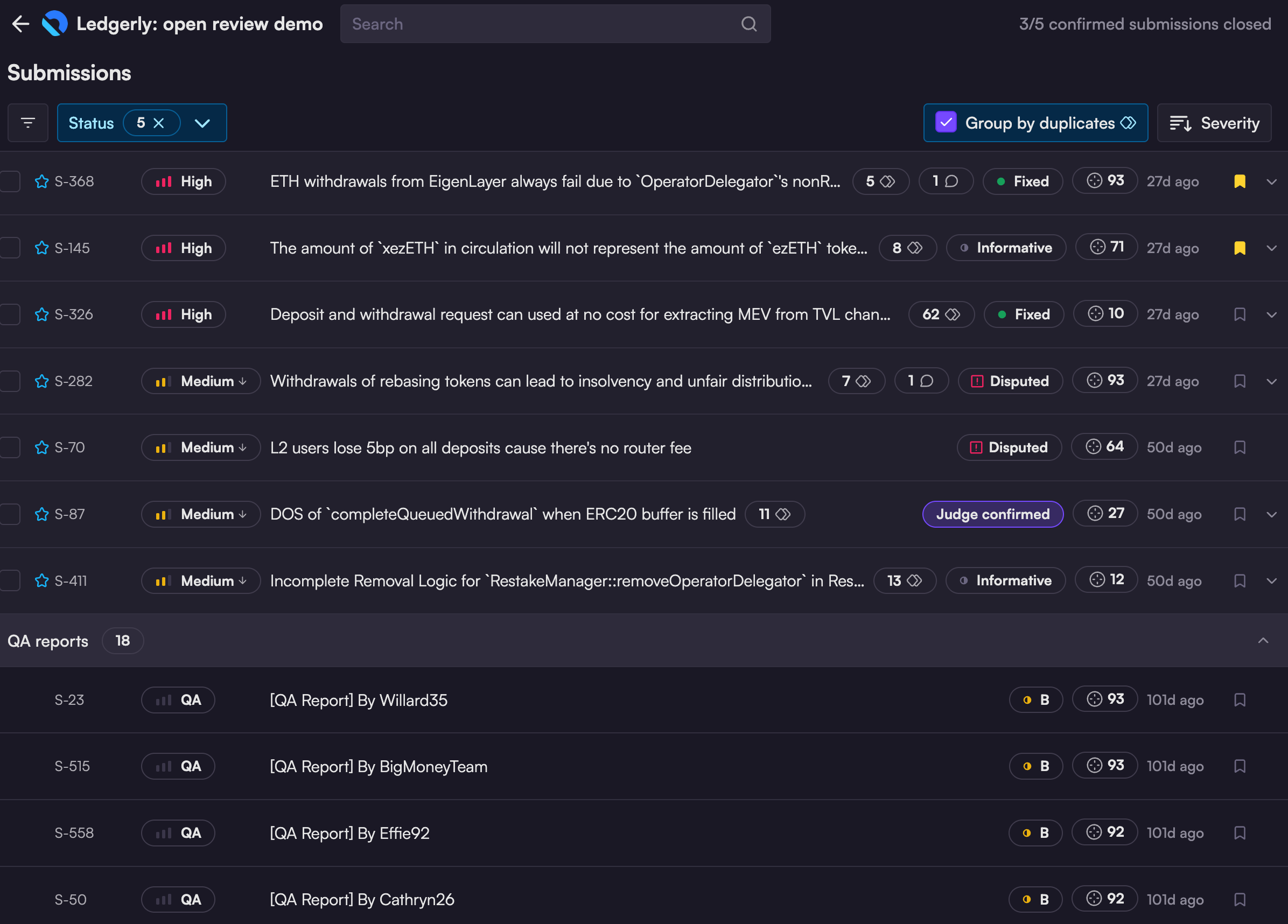
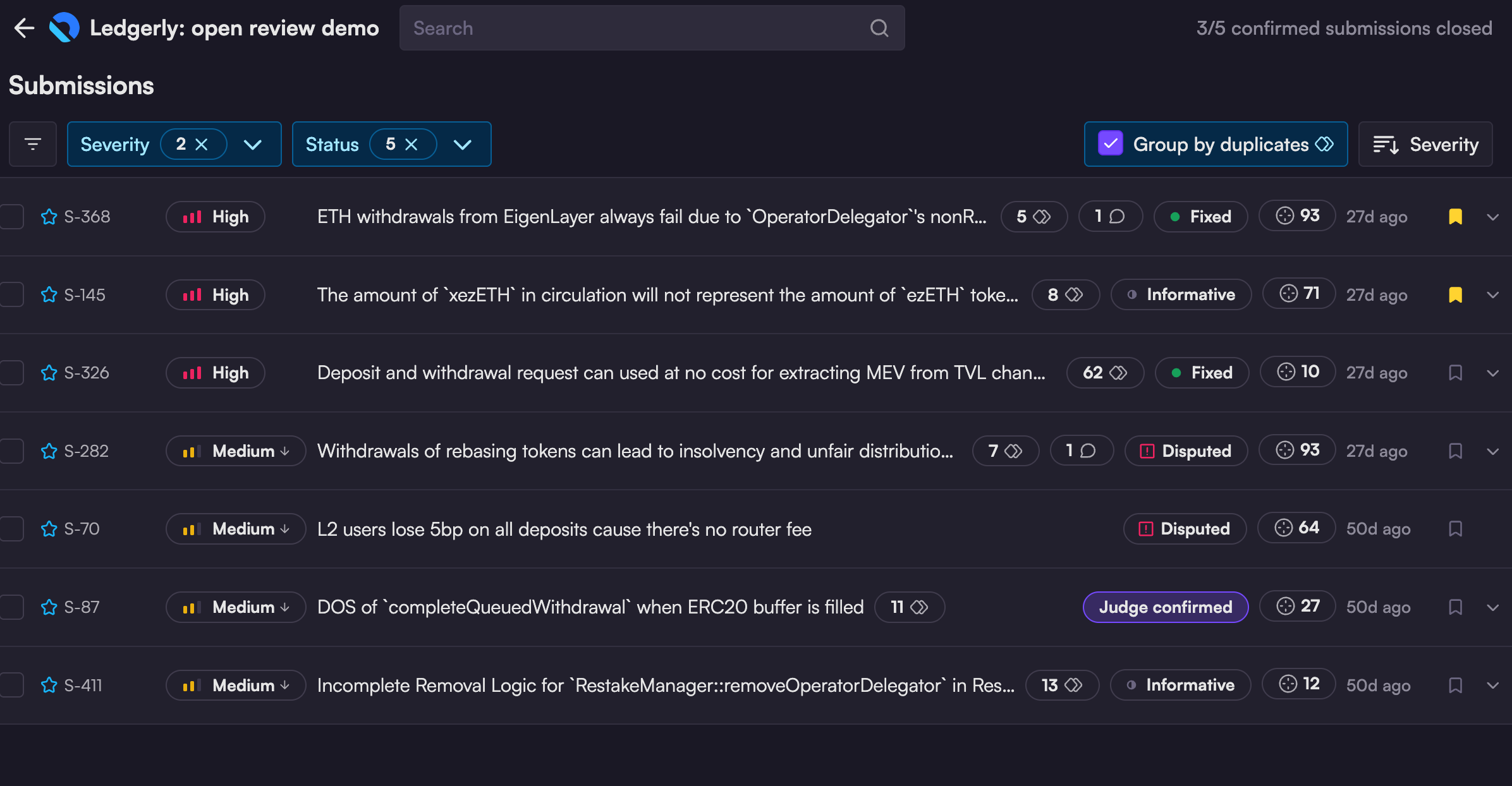
Once triage has been completed, you will no longer see ungrouped ("New & under review") submissions, just submissions that have been confirmed by the judge:
This view shows triage is complete; there's no longer a section for "New and under review" submissions.
Submission filters
Audit submissions may be filtered by:
Risk
Status
Group/ungroup duplicates
(For mitigation reviews only) Mitigated/Unmitigated status
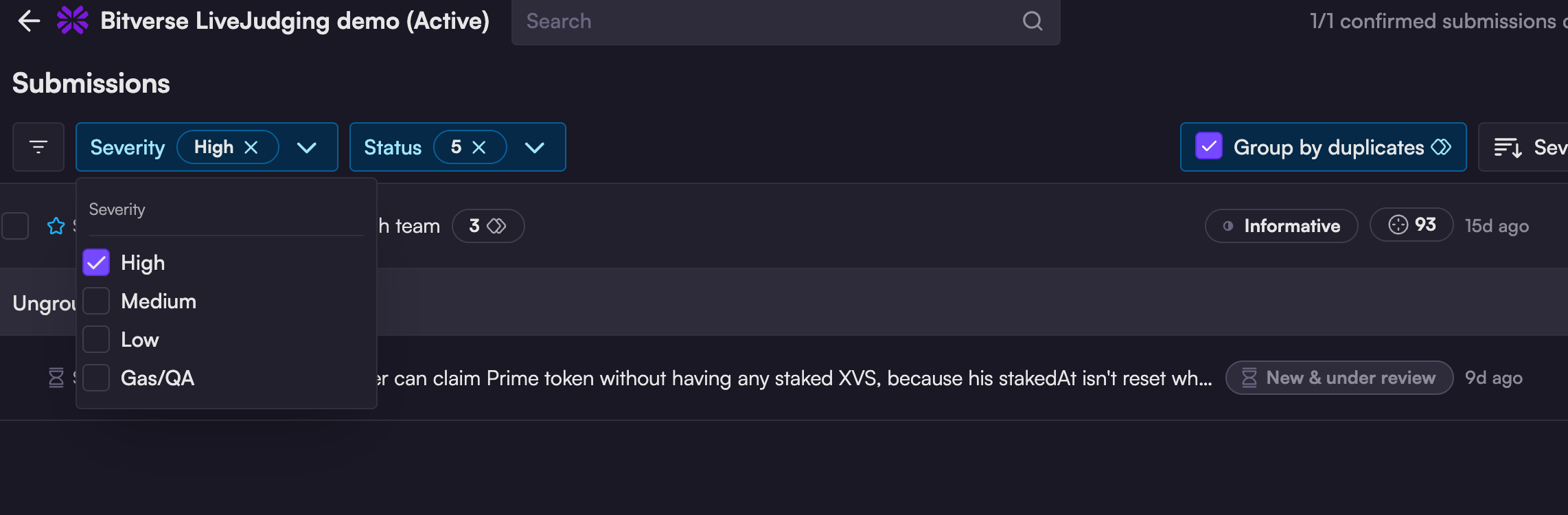
Filtering by severity
The Severity filter defaults to displaying all severities, but you can adjust it to focus on a single severity level.
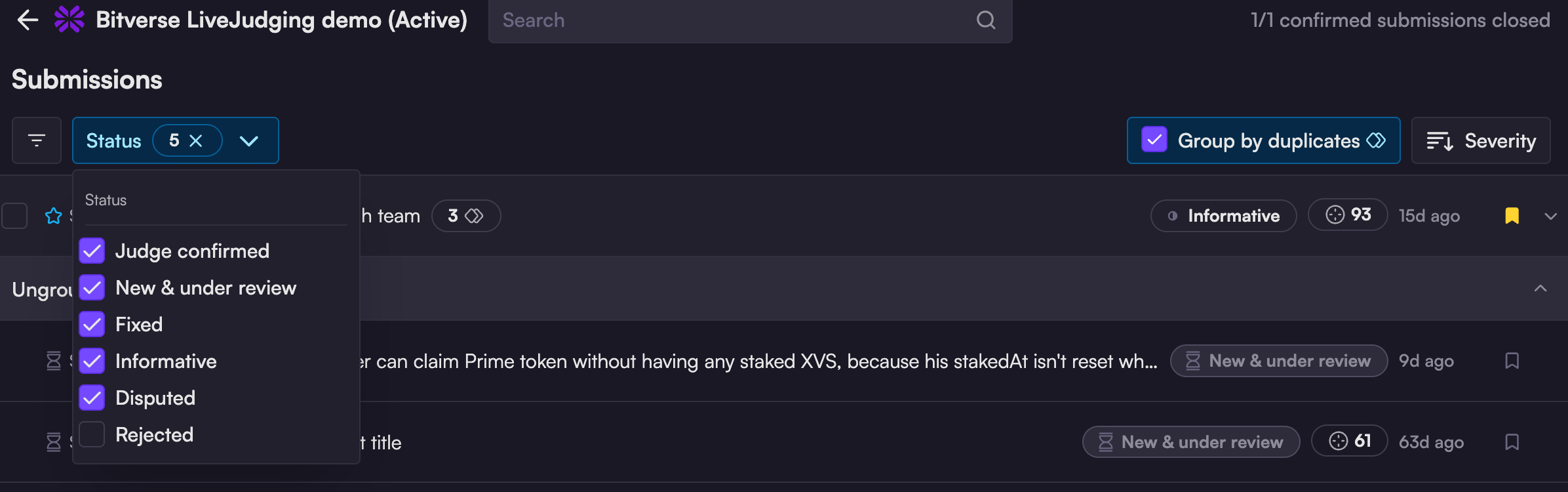
Filtering by status
The default setting for Status is to include everything except rejected submissions. The filter can be adjusted as needed.
Group/ungroup duplicates
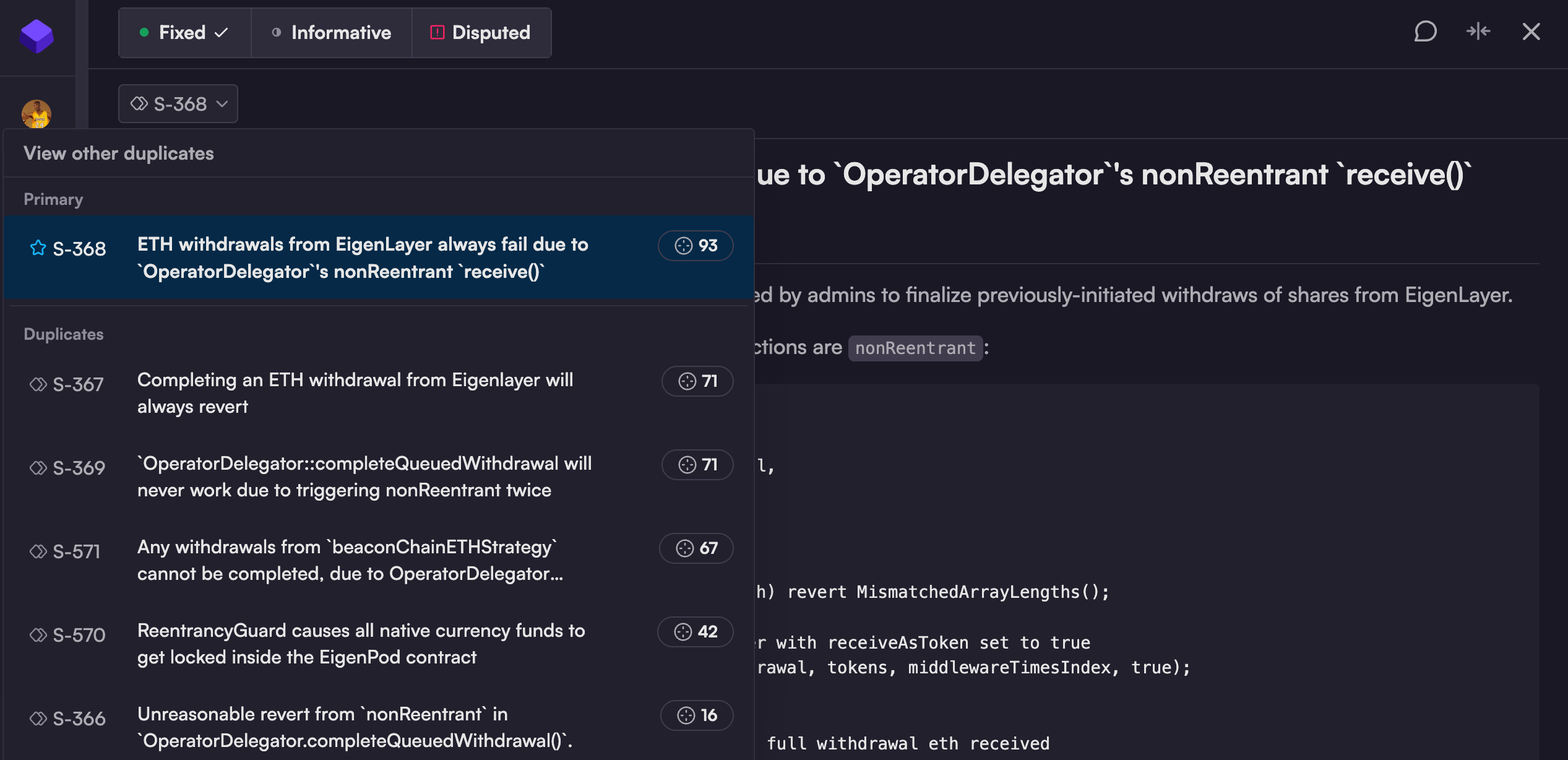
Since Code4rena audits typically include many duplicate submissions, the default view groups duplicates together to save you time. However, there can be valuable detail and nuance within individual submissions in a duplicate set.
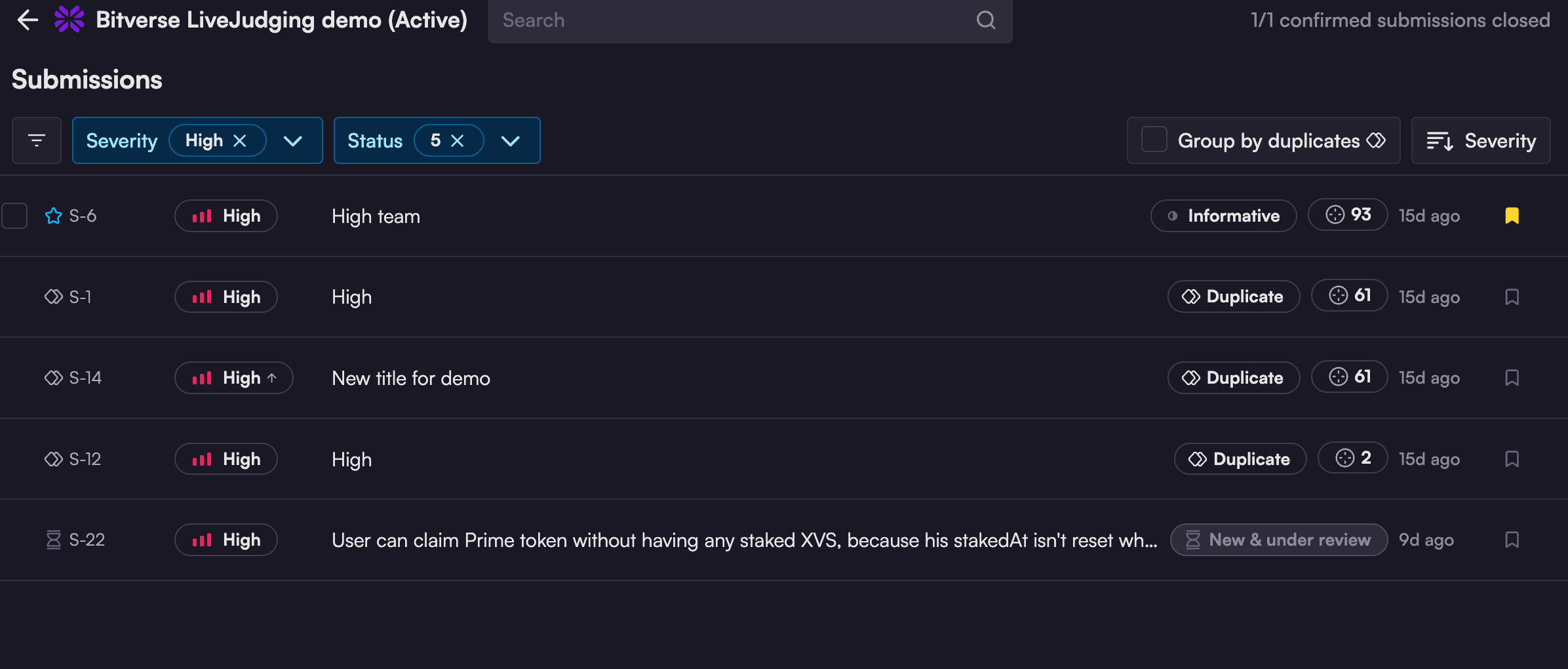
If you prefer to review each submission separately, simply uncheck the Group by duplicates option.
Unchecking Group by duplicates displays every submission individually.
Sorting
By default, the submission list is sorted by severity, from High to Low. The sorting menu allows you to sort by severity, last updated, or duplicate count (number of duplicates) — and to select ascending or descending order.
The "Last updated" sorting function is especially helpful during the judging phase, if you wish to follow the judge's deliberations closely. It will highlight any submissions that have recent updates to the judge's evaluation, or new comments.
Search
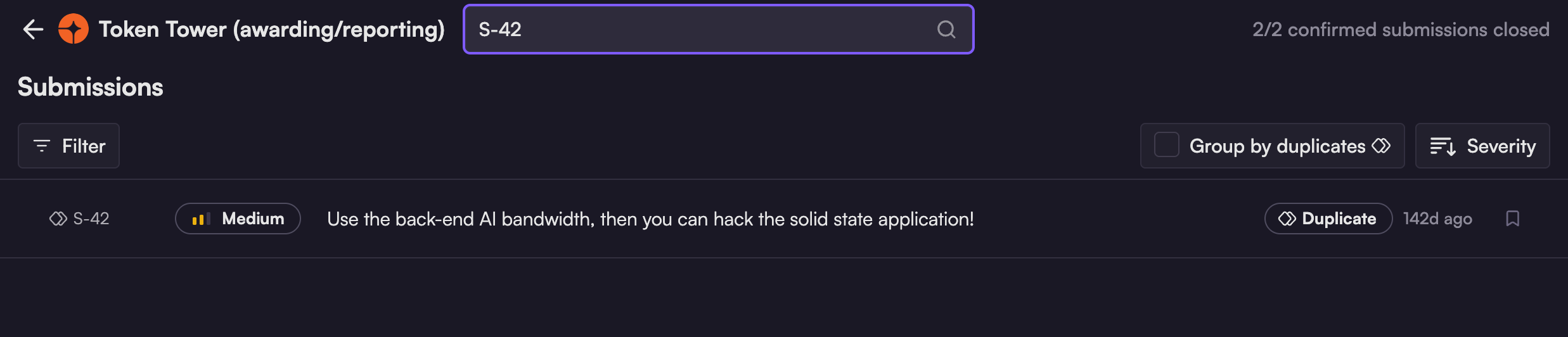
The search function offers a convenient way to locate submissions related to a particular file or function. The search field supports searching for:
keywords in submission title or body
warden/team name
submission number (e.g. S-42)
For best results, ensure that you deselect any filters, and uncheck Group by duplicates — otherwise, some results may be hidden.
Searching by submission number works best with all filters removed.
Submission status
The Status function allows your team to keep track of findings confirmed by the judge.
This is optional, but you may wish to update a submission's Status in order to:
Keep track of your team's stance and mitigation progress
Provide input to the judge
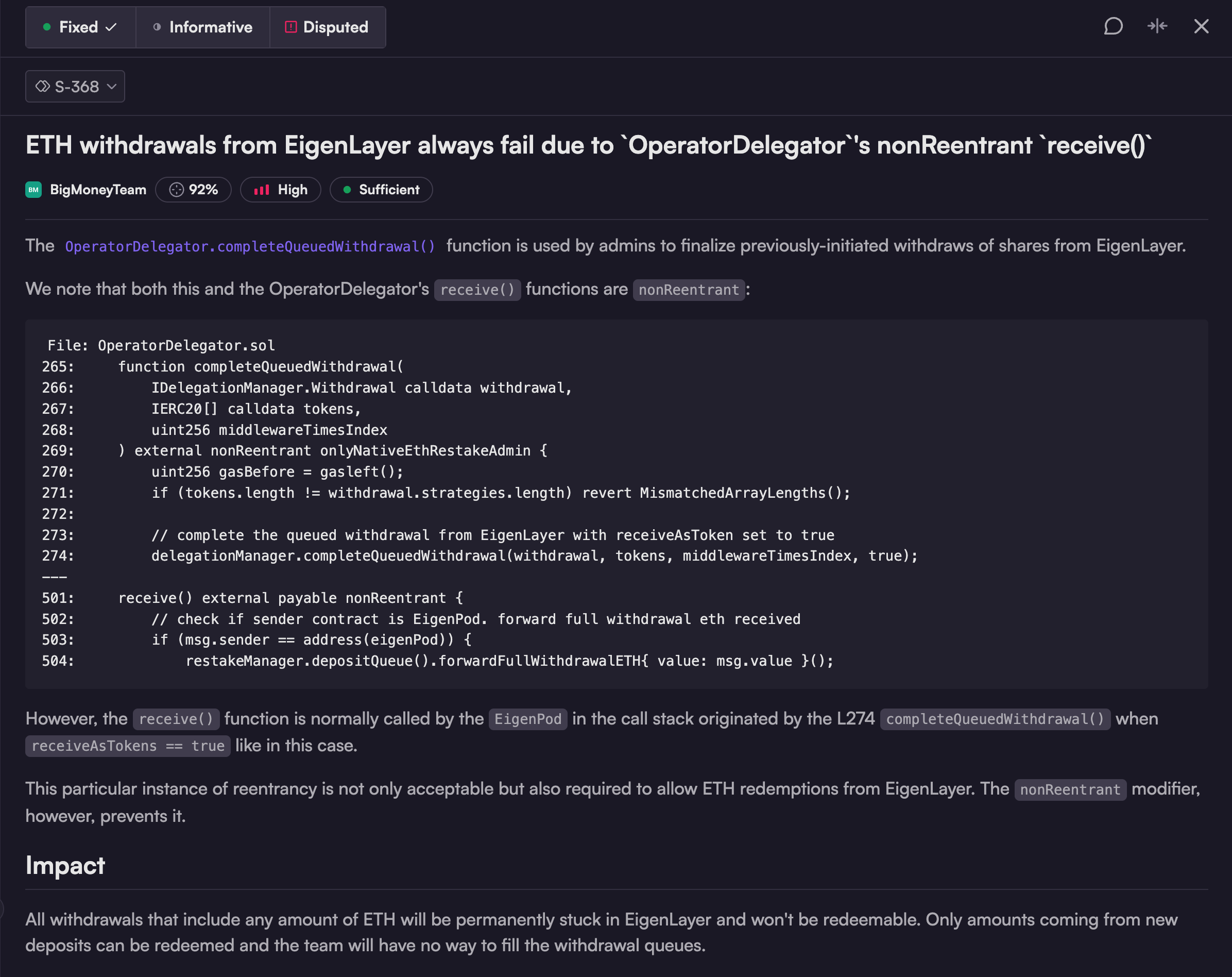
The options for Status are:
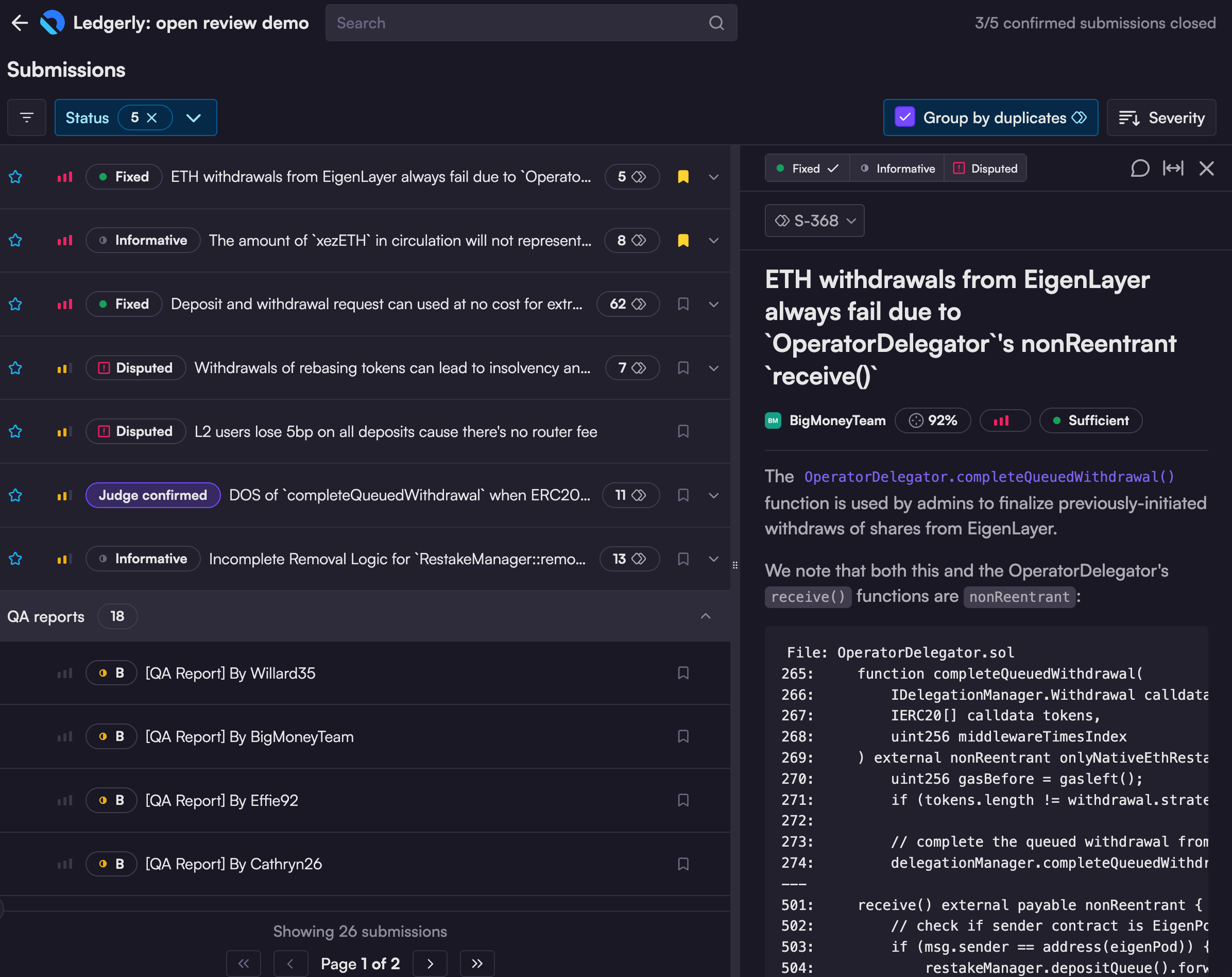
Judge confirmed : the default status for triaged submissions that the judge believes are valid and merit review.
Fixed : sponsor has fixed the issue
Mark as informative: issue does not currently need a fix
Disputed: sponsor disputes the validity of this issue
Bookmark submissions
The bookmark icon can be selected to help you track submissions you want to come back to.
The yellow bookmark icon appears on the far right of each submission row.
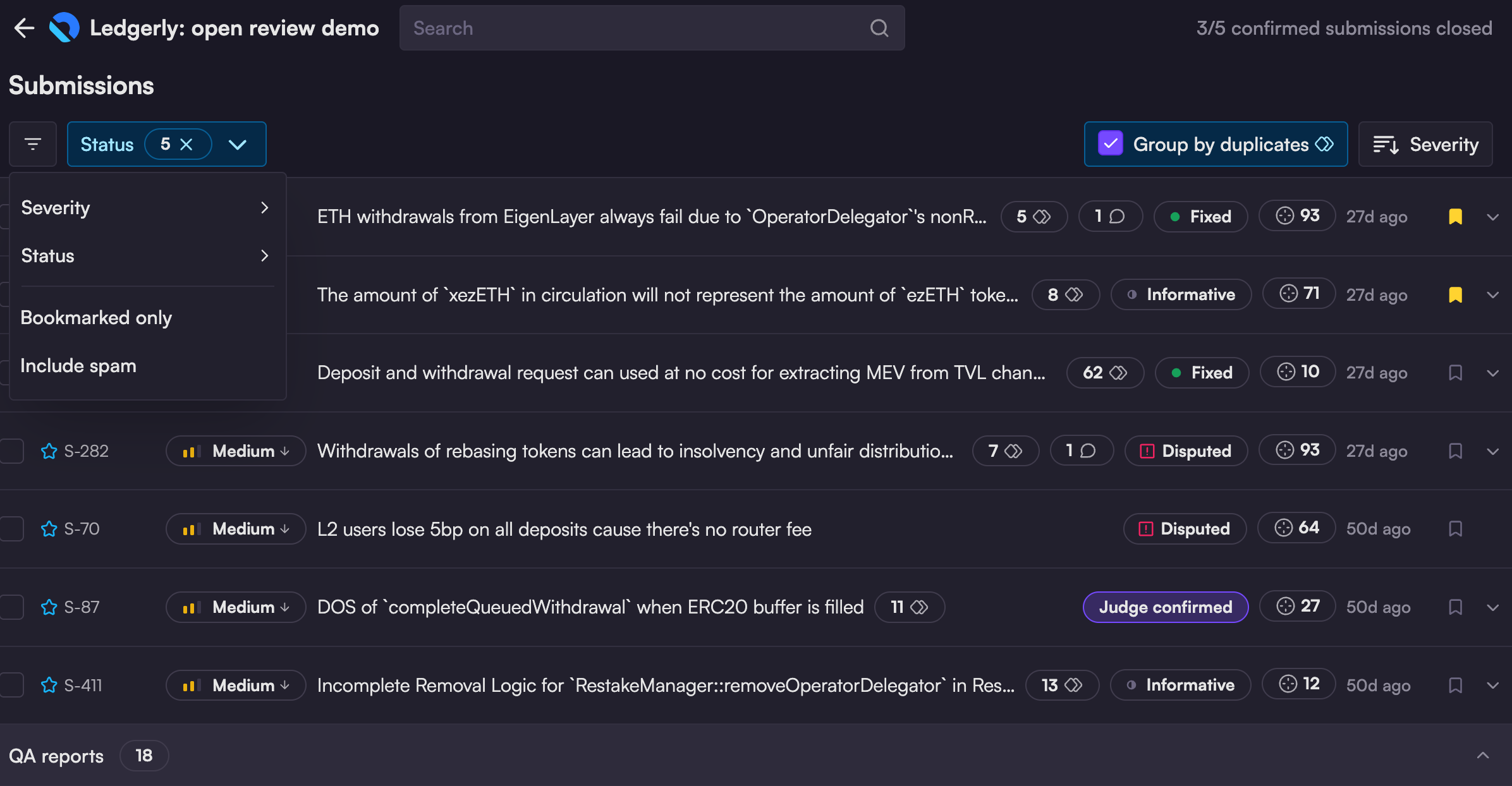
To view your bookmarked submissions, click the filter icon and select Bookmarked only:
The filter icon is in the top left section of the screen, directly below the "Submissions" heading.
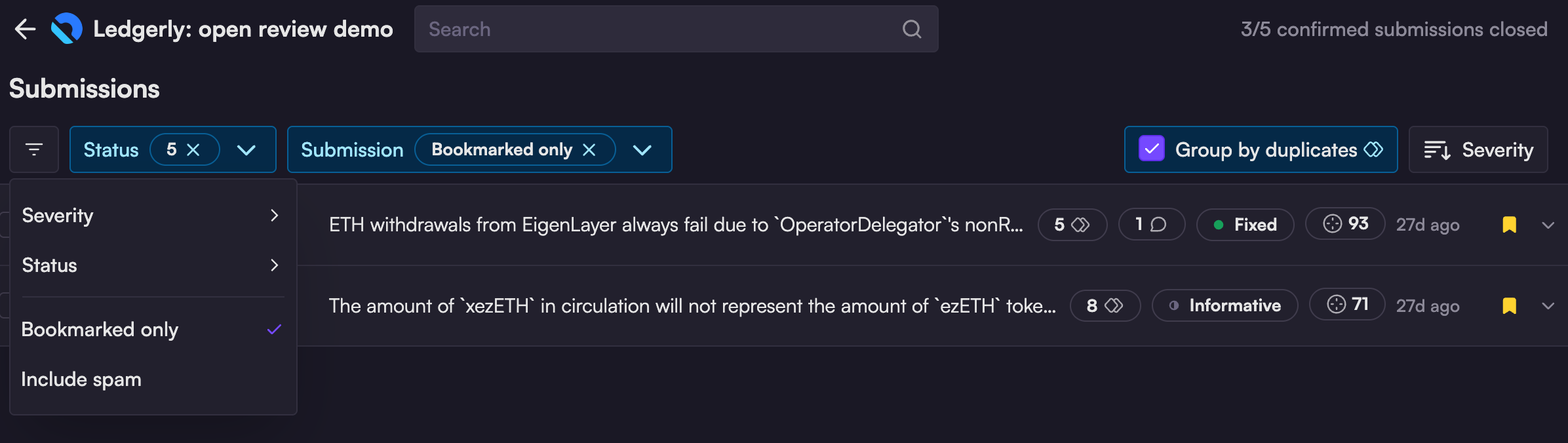
This applies another filter to your existing filters, so you may need to adjust your other filters if you wish to display *all* bookmarked submissions.
To reset the Bookmarked only filter, just click the x next to it.
Which submissions will appear in our report?
Once the judge finalizes all decisions, your Engagement Manager will share a link to view all submissions that will appear in your audit report.
All judge confirmed High- and Medium-risk findings will appear in your audit report, along with the top-ranked QA report. While your input to the judge (via the Status labels and comments) is taken into account, ultimately the judge has the final say in determining validity and severity.
To preview the findings that will appear in your report, set the filters to: