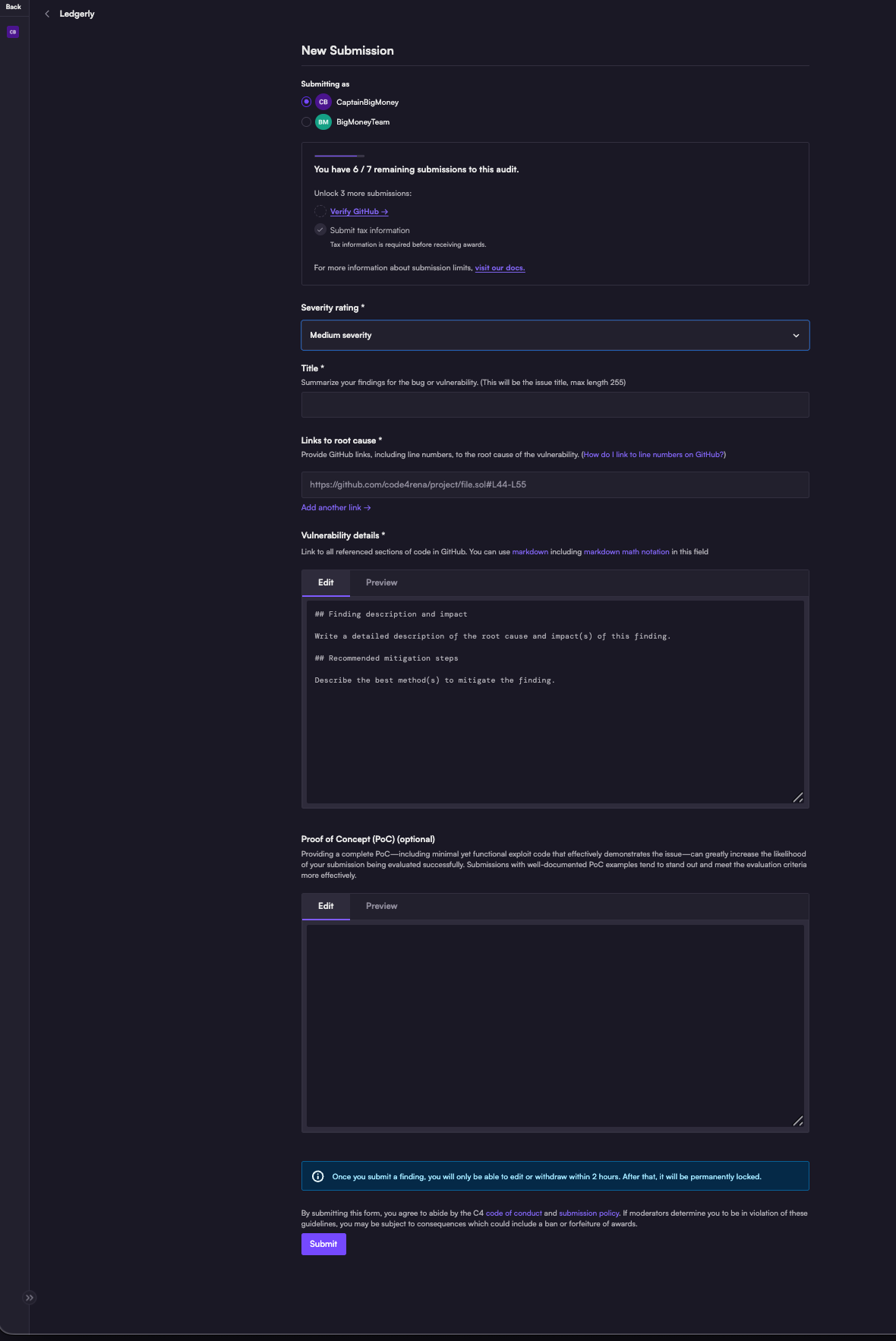
Supports full Markdown formatting for code examples and explanations
Before submitting:
Review requirements - Check the audit repository and submission guidelines for specific requirements
Verify links - ensure all GitHub links point to correct line numbers
Use Preview - Review formatting and clarity with the Preview tab
Check policies - Review the code of conduct and submission policy (both linked from the submission form)
Viewing your submissions
There are two ways to access your submissions to audits:
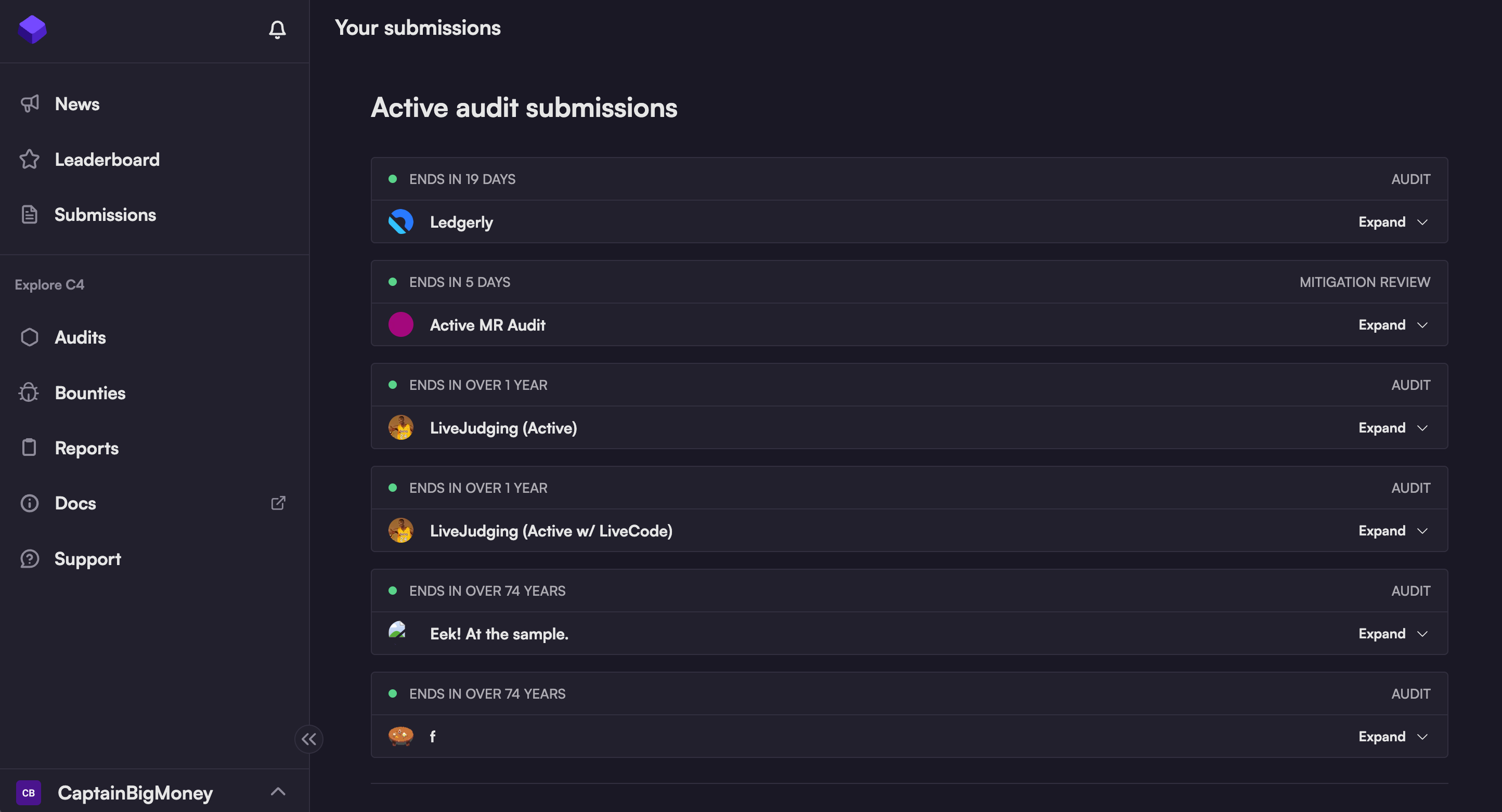
Navigate to "Submissions" in the main menu to view all your submissions across every audit you've participated in. This centralized dashboard helps you track your entire Code4rena submission history. From the "Submissions" page, scroll to the relevant audit, click the Expand toggle, then select the submission you want to view.
From the Audits page, select the relevant audit, then select the appropriate option depending on the audit's current phase:
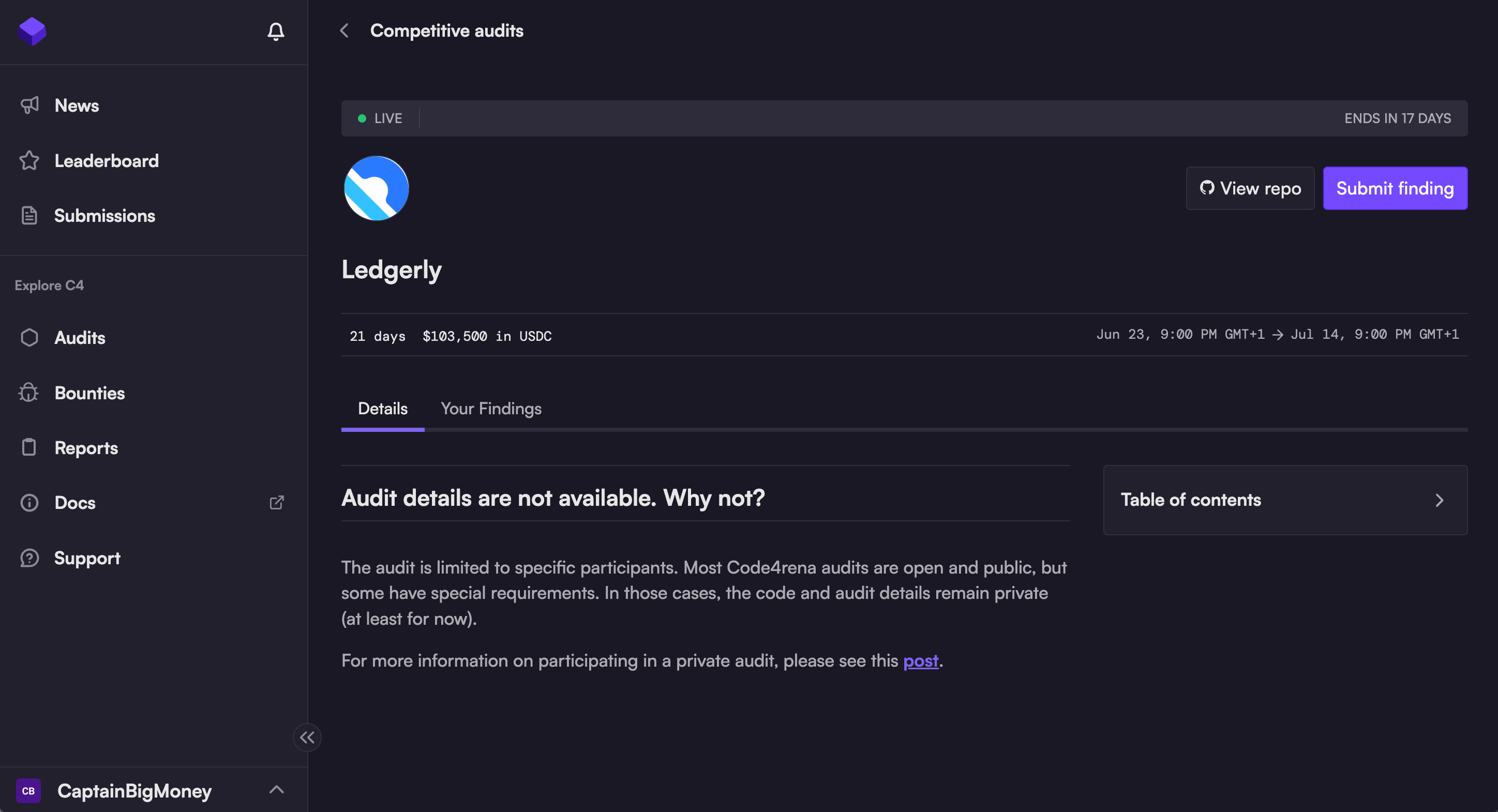
During the submission (Active) phase, click the Your Findings tab to view your submissions
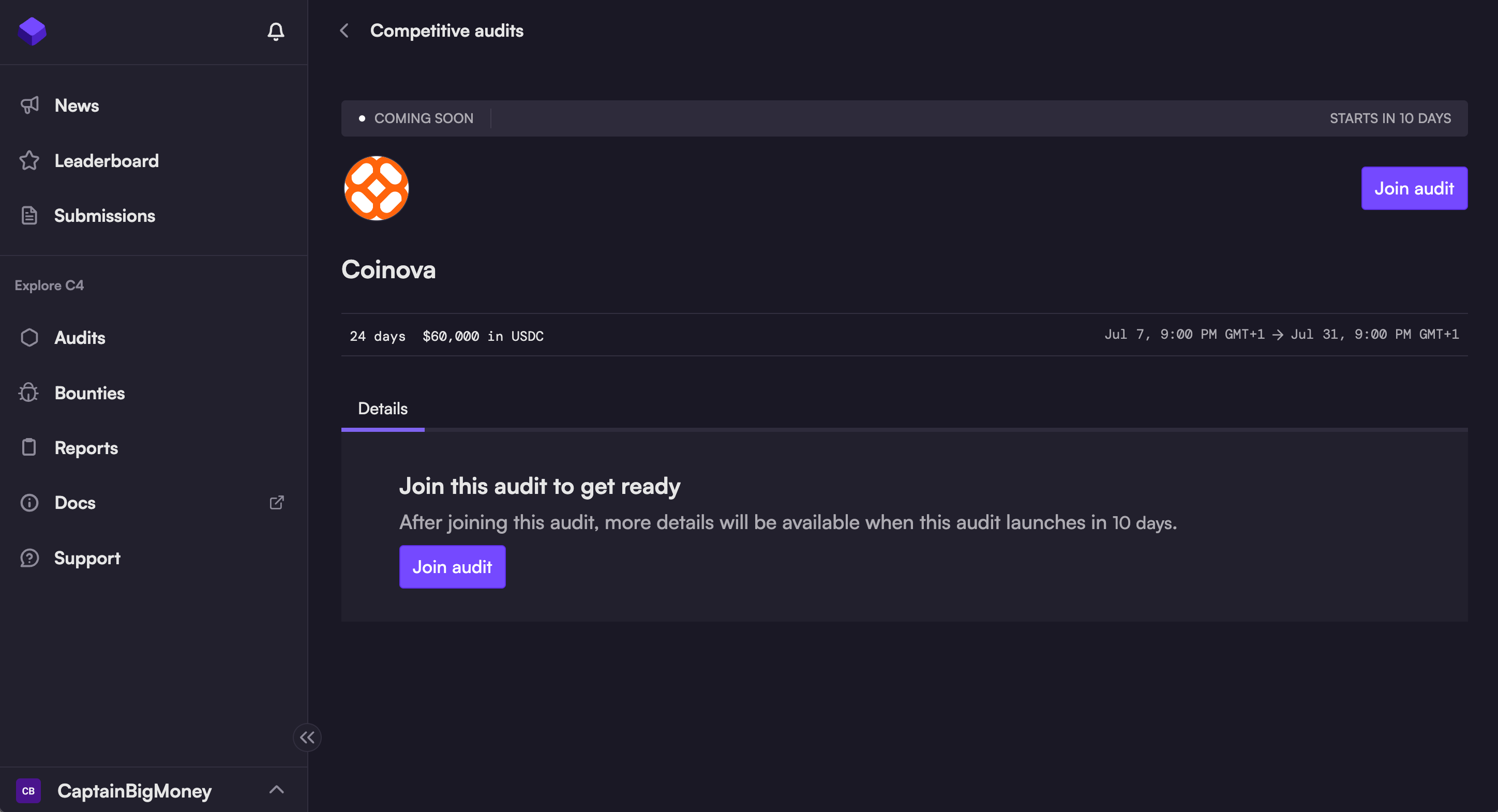
After submissions close, click View dashboard to view all submissions to the audit, including your own. (The dashboard is documented here.)
The "Submissions" tab displays a list of audits you've submitted to.
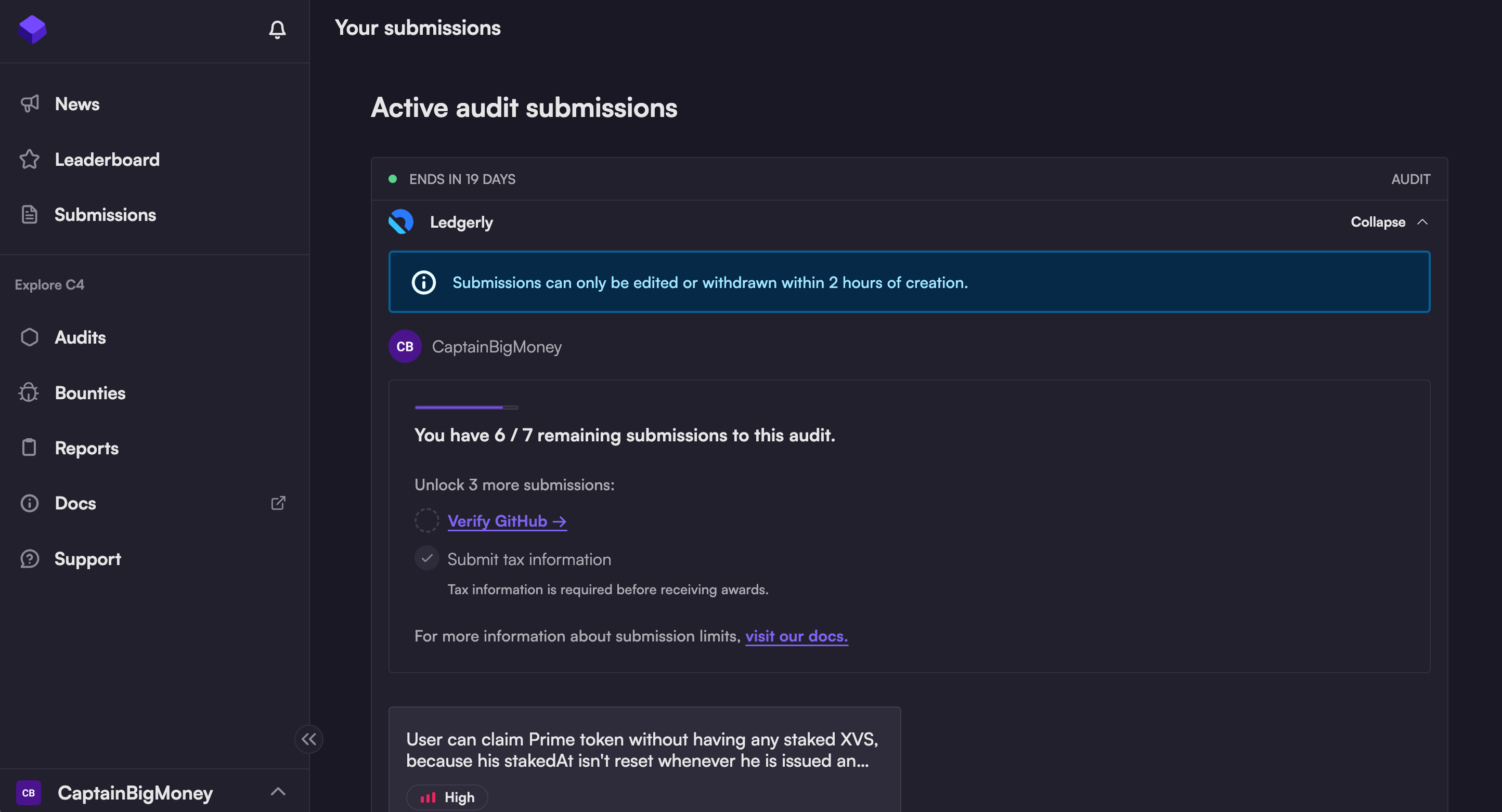
Expanding an audit in the list shows all of your submissions to that audit.
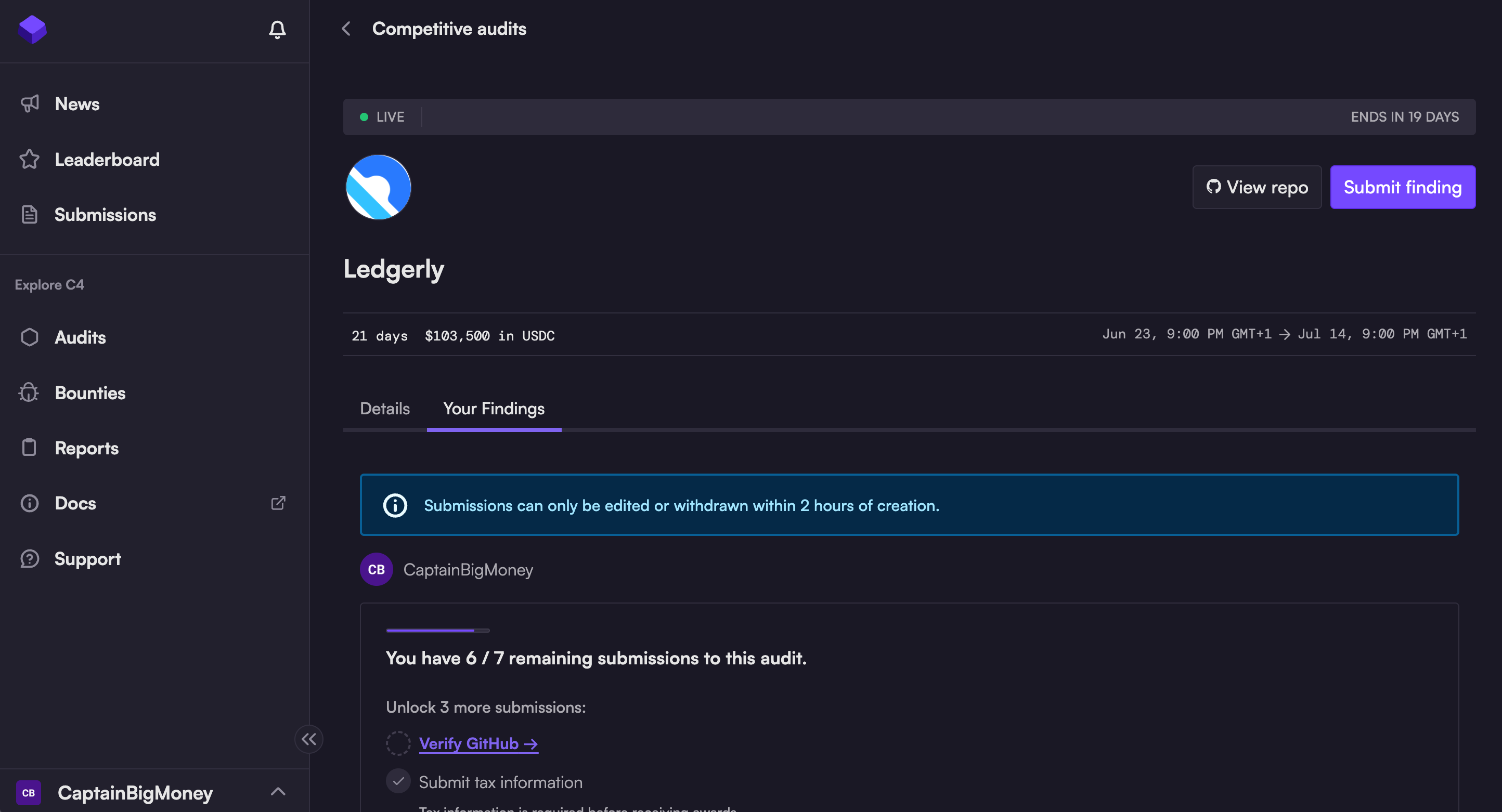
To view all of your submissions to an audit, you can also navigate to that audit's page and select the "Your Findings" tab.
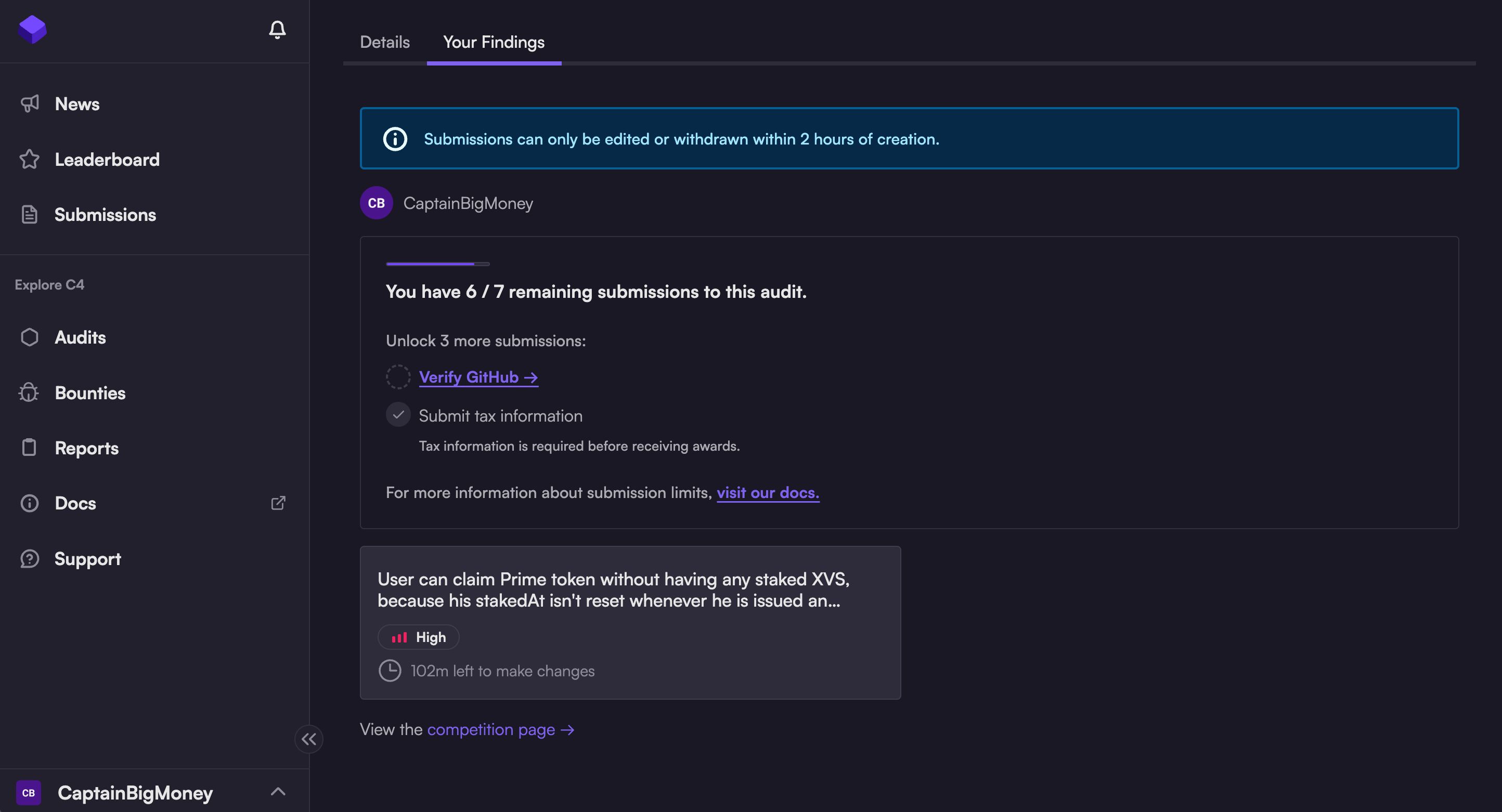
Note: Judges are permitted to edit submission titles for clarity, so your submission may appear with an altered title.
Editing submissions
Submissions can only be edited or withdrawn within 2 hours of creation.
Click on any submission card showing a clock icon to enter the editing mode.
During the two-hour submission window, clicking into a submission will allow you to edit or withdraw your submission.
Your submissions will display a countdown to show how long you have left to make changes.
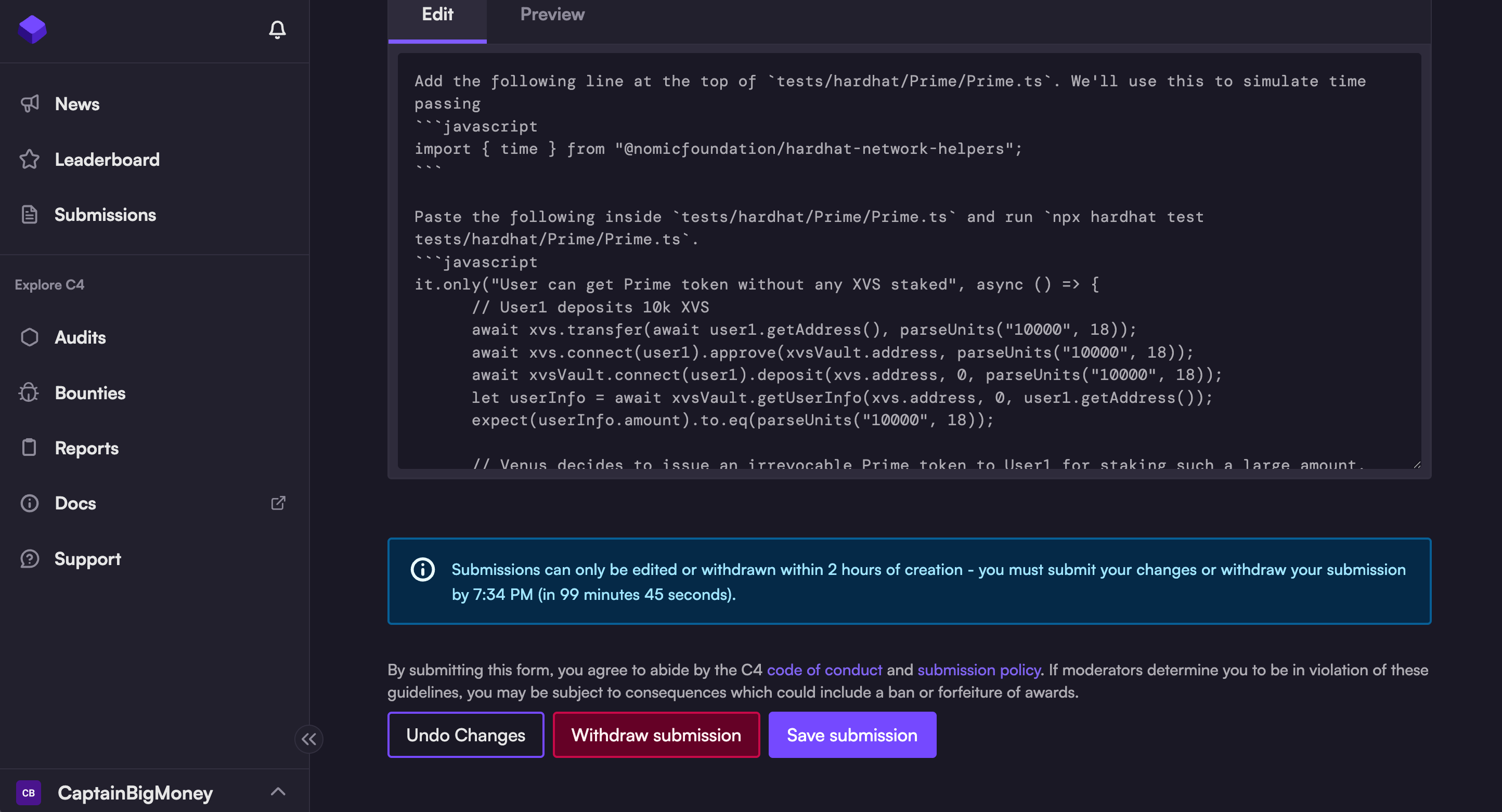
You will also see a countdown on the editing screen. The edit interface uses the same form layout as creating new submissions, with all your original content pre-populated.
Edit interface features
Same form fields - All original submission fields (title, severity, root cause links, vulnerability details, PoC) are editable
Edit/Preview tabs - Full markdown editing capabilities with preview functionality
Precise deadline warning - Blue notification shows exact deadline (e.g., "you must submit your changes or withdraw your submission by 3:33 PM (in 119 minutes 11 seconds)")
Available actions
At the bottom of the edit screen, you'll see three action buttons:
Undo changes - Revert all modifications back to the original submission content
Withdraw submission - Permanently remove the submission from the audit (cannot be undone)
Save submission - Update the submission with your changes